How to Convert DVD to Digital Without Losing Quality
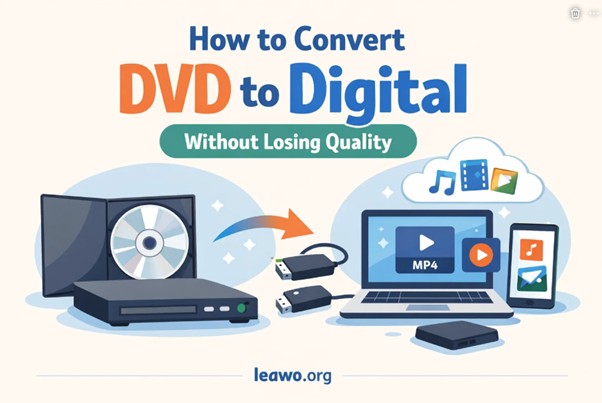
DVDs were once the go-to format for movies, home videos, and TV shows, but today they’re increasingly inconvenient. Scratches, aging discs, and the lack of DVD drives on modern laptops make physical media harder to use. That’s why many people want to convert DVD to digital formats they can store on computers, phones, tablets, or smart TVs.
The good news is that it’s entirely possible to transfer DVD to digital without noticeable quality loss—if you use the right tools, settings, and formats. In this guide, you’ll learn how to convert DVD to digital, what you need before starting, and the best methods available today.
What You Need Before Converting a DVD
Before you start to digitize DVDs, make sure you have the following essentials:
- A DVD drive
Many modern computers don’t include one, so you may need an external USB DVD drive. - DVD ripping or conversion software
A reliable DVD to digital converter is crucial for preserving video and audio quality. - Enough storage space
High-quality digital files can be large. Make sure your hard drive has sufficient free space. - A legally owned DVD
Always ensure you are converting DVDs you own for personal use and comply with local copyright laws.
Best Digital Formats for DVD Conversion
Choosing the right format plays a major role in quality retention and compatibility.
- MP4 (H.264 or H.265)
The most popular choice. It balances excellent quality with small file size and works on nearly all devices. - MKV
Ideal if you want to keep multiple audio tracks and subtitles without compression loss. - AVI
An older format with larger file sizes, but still useful for legacy systems.
For most users, MP4 with H.264 encoding is the safest option when you convert DVD to digital without losing quality.
Method 1: Convert DVD to Digital Using HandBrake
HandBrake is a free, open-source tool that’s widely used to transfer DVD to digital formats.
Steps to use HandBrake:
- Install HandBrake on your computer.
- Insert the DVD and open HandBrake.
- Select the DVD as the source.
- Choose a preset (such as “General → HQ 1080p30”).
- Select MP4 as the output format.
- Adjust video quality using the RF slider (lower RF = higher quality).
- Click “Start Encode.”
Pros:
- Free and open-source
- Excellent quality control
- Supports many presets
Cons:
- Cannot rip copy-protected DVDs by default
HandBrake is ideal for unprotected discs and users who want full control over quality settings.
Method 2: Convert Protected DVDs Using Leawo Blu-ray Ripper
Many commercial DVDs include copy protection, which HandBrake alone can’t handle. In that case, a professional solution like Leawo Blu-ray ripper is a powerful option.
Leawo allows you to convert DVD to digital formats such as MP4, MKV, AVI, and more, while bypassing common DVD protections.
How it works:
- Install and open Leawo Blu-ray Ripper.
- Load your DVD from the disc drive.
- Choose the main movie or desired titles.
- Select your output format and device profile.
- Customize video and audio parameters if needed.
- Start the conversion process.
Why choose Leawo?
- Supports protected DVDs
- Preserves original video and audio quality
- Offers device-specific presets
If you’re looking for a reliable and feature-rich solution, this tool is often recommended as the best DVD ripper for both Windows and macOS users.
Method 3: Convert DVD to Digital via Cloud or DVD-to-Digital Services
If you prefer not to handle the process yourself, DVD-to-digital services are another option.
How these services work:
- You mail your DVDs to the service provider.
- They digitize the content and upload it to a cloud account or USB drive.
- You download or stream your digital copies.
Pros:
- No technical knowledge required
- Convenient for large collections
Cons:
- Ongoing costs per DVD
- Limited control over quality and formats
- Privacy concerns
These services can be useful, but they’re usually more expensive than using a DVD to digital converter at home.
Common Problems and How to Fix Them
- Poor video quality after conversion
- Increase the bitrate or lower the RF value.
- Use a high-quality preset.
- Audio out of sync
- Try a different audio track.
- Re-encode using a constant frame rate.
- Large file sizes
- Switch from H.264 to H.265 encoding.
- Reduce resolution slightly without noticeable quality loss.
- DVD not recognized
- Clean the disc.
- Check your DVD drive or try another drive.
FAQs
Q1: Can I convert DVD to digital without losing quality?
Yes. By choosing the right format, bitrate, and software, you can achieve near-lossless results.
Q2: What is the best format to digitize DVDs?
MP4 (H.264 or H.265) is the most versatile and widely supported.
Q3: Is it legal to digitize DVDs?
It depends on your local laws. Generally, converting legally owned DVDs for personal use is allowed in many regions.
Q4: How long does it take to convert a DVD?
Typically 20–60 minutes, depending on video length, computer speed, and settings.
Conclusion
Learning how to convert DVD to digital is one of the best ways to preserve your movie collection and make it accessible on modern devices. Whether you use free tools like HandBrake, advanced software such as Leawo Blu-ray Ripper, or professional DVD-to-digital services, the key is choosing the right method for your needs.
By selecting the proper format, maintaining optimal settings, and using a trusted DVD to digital converter, you can digitize DVDs without sacrificing quality—and enjoy your favorite content anytime, anywhere.