Creating Better Visuals Without the Usual Hassle: A Practical Look at Pixlio AI
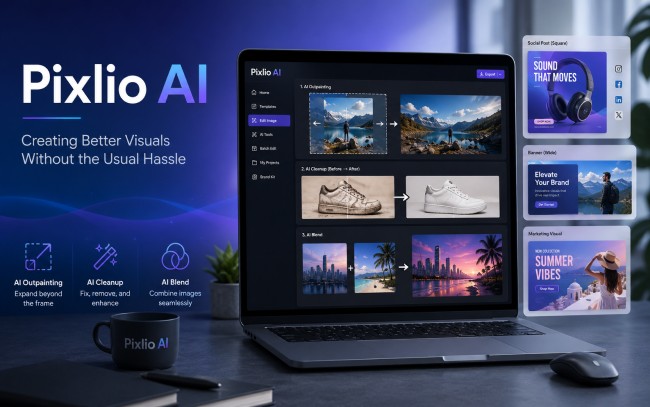
Anyone who regularly creates content, whether for a blog, a social media page, a product listing, or a small marketing campaign, knows the same struggle. You need an image that looks good, fits the format, and doesn’t take hours to produce. Stock photos rarely match what you actually need, and hiring a designer for every small task isn’t realistic for most creators or small teams. This is where AI image tools have quietly become useful, not as a gimmick, but as a practical part of everyday content work. Pixlio AI is one of these tools, and after using it for a range of everyday visual tasks, it’s worth sharing an honest look at where it actually helps.
Filling In the Gaps With AI Outpainting
One of the more genuinely useful features in Pixlio is its AI outpainting tool, which extends an image beyond its original borders instead of just cropping or stretching it awkwardly. This comes up more often than people expect. A product photo might be framed too tightly for a banner. A portrait shot might need extra background space for a social media cover. A landscape image might need to be widened to fit a specific layout. Instead of hunting for a replacement photo or awkwardly duplicating pixels in an editor, outpainting lets you extend the scene naturally, keeping the lighting, texture, and perspective consistent with the original image.
What stands out is that the results generally hold up under normal use, not just in ideal test cases. The tool doesn’t just guess blindly, it tries to understand the existing image and continue it in a way that looks like it was captured that way originally. This is especially helpful for creators who work with different aspect ratios across platforms, since a single photo often needs to be reshaped for Instagram, a blog header, a YouTube thumbnail, and a website banner, all with different proportions.
Everyday Editing Without a Steep Learning Curve
Beyond outpainting, the Pixlio AI Image Editor covers a lot of the small, repetitive tasks that eat up time during content creation. Removing a distracting background object, adjusting lighting, cleaning up a product photo, or making small color corrections are all things that used to require at least basic knowledge of traditional editing software. With Pixlio, these tasks are simplified enough that someone without a design background can handle them without feeling lost.
This matters more than it might seem at first. Many people creating content today are not trained designers, they are marketers, small business owners, bloggers, or social media managers who need results quickly. A tool that lowers the technical barrier without sacrificing quality tends to get used more consistently, simply because it fits into a real workflow instead of adding friction to it.
Combining Images Into a Single Scene
Another practical use case is merging separate images into one cohesive visual. This is common in product marketing, where a business might want to show a product photographed separately alongside a lifestyle background, or combine two elements that were never photographed together in the first place. Doing this manually usually means layering images, adjusting edges, matching lighting, and spending time making sure nothing looks pasted together.
Pixlio handles a good portion of that blending work automatically, which is helpful for quick projects where perfection isn’t the goal but a natural, believable result is. It won’t replace a skilled photo editor working on a high end campaign, but for everyday marketing visuals, quick concept mockups, or social media graphics, it does a solid job of saving time without producing an obviously artificial result.
Testing Creative Ideas Quickly
One underrated use of tools like this is simply exploring ideas before committing to a direction. Sometimes you’re not sure whether a certain visual concept will work, whether a product photo would look better with a different background, or whether a certain crop or extension actually improves the composition. Instead of spending significant time testing this manually, Pixlio allows for quick experimentation.
This kind of fast iteration is genuinely useful for content creators who need to make decisions quickly, especially when working on a schedule with regular posting requirements. Being able to test two or three visual directions in a short amount of time, rather than fully committing to one and hoping it works, changes how comfortable people feel with creative decisions.
Where It Fits, and Where It Doesn’t
It’s worth being upfront that Pixlio, like most AI image tools, is not a full replacement for a professional designer working on high stakes creative projects. Complex branding work, intricate photo manipulation, or highly specific artistic direction still benefit from human expertise. What Pixlio is genuinely good at is handling the frequent, smaller scale visual tasks that content creators face regularly, things that don’t need a design agency but still need to look clean and professional.
For bloggers needing header images that fit oddly shaped layouts, social media managers needing consistent visuals across multiple platforms, small business owners updating product listings, or anyone testing creative directions before investing more time, it fills a practical gap. It’s not about replacing creativity, it’s about removing some of the repetitive technical work that gets in the way of it.
Conclusion
Tools like Pixlio AI are useful not because they promise to do everything, but because they handle specific, recurring tasks well. Whether it’s cleaning up a photo, blending two images into a natural looking scene, or using AI outpainting to extend an image for a new format, the value comes from saving time on tasks that would otherwise slow down the creative process. For anyone regularly producing visuals for blogs, marketing, or social media, it’s a practical addition to the toolkit rather than a flashy one, and that kind of reliability is often what matters most in day to day content work.